How to Manage WooCommerce in Storex Pro?
1. How to Manage Store Notice.
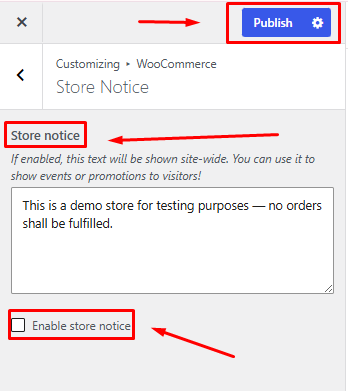
From your dashboard, go to the Appearance > Customize > WooCommerce > Store Notice
Store Notice Content: Enter the message you want to display as a store notice.
Enable Store Notice: Enable or disable the store notice banner on your website.
Publish Settings: Click Publish to save and apply all changes.
2. How to Manage Product Catalog.
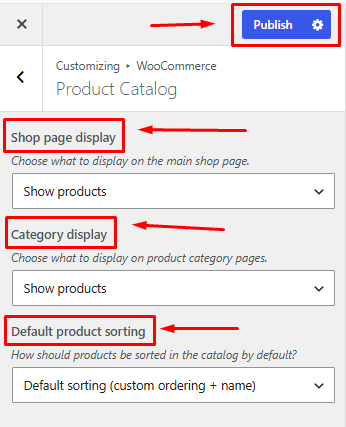
From your dashboard, go to Appearance > Customize > WooCommerce > Product Catalog
Shop Page Display: Choose what is displayed on the shop page, such as products, categories, or both.
Category Display: Select how products and subcategories are displayed on category pages.
Default Product Sorting: Choose the default sorting order for products in your store.
Publish Settings: Click Publish to save and apply all changes.
3. How to Manage Product Images
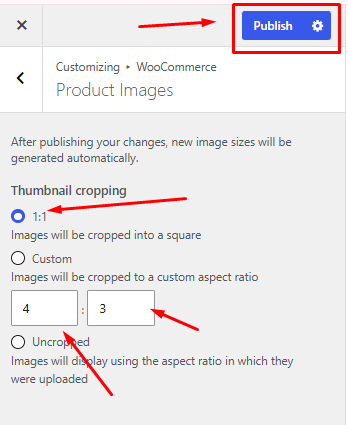
From your dashboard, go to Appearance > Customize > WooCommerce > Product Image
Thumbnail Cropping: Choose how product thumbnails are displayed. Available options include Square, Custom, or Uncropped image sizes.
Publish Settings: Click Publish to save and apply all changes.