How to Manage Menu Settings in Storex Pro?
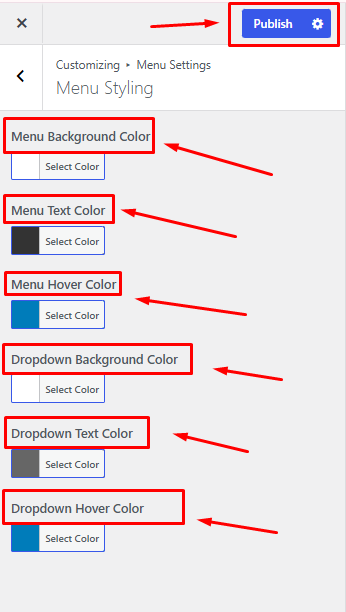
1. How to Manage Menu Styling.
From your dashboard, go to the Appearance > Customize > Menu Settings > Menu Styling
Here you can easily manage Menu Styling Sections.
Menu Background Color: Choose the background color of the main menu.
Menu Text Color: Select the default text color for menu items.
Menu Hover Color: Set the color displayed when hovering over menu items.
Dropdown Background Color: Choose the background color for dropdown menus.
Dropdown Text Color: Select the text color for dropdown menu items.
Dropdown Hover Color: Set the color displayed when hovering over dropdown menu items.
Publish Settings: Click Publish to save and apply all changes.
Publish Now
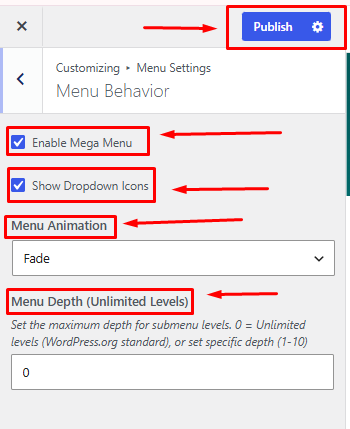
2. How to Manage Menu Behavior.
From your dashboard, go to the Appearance > Customize > Menu Settings > Menu Behavior.
Enable Mega Menu: Enable or disable mega menu functionality for navigation items.
Show Dropdown Icons: Display icons next to menu items that contain dropdown menus.
Menu Animation: Select the animation effect used when opening dropdown and mega menus.
Menu Depth (Unlimited Levels): Set the maximum number of submenu levels allowed in the navigation menu.
Publish Settings: Click Publish to save and apply all changes.
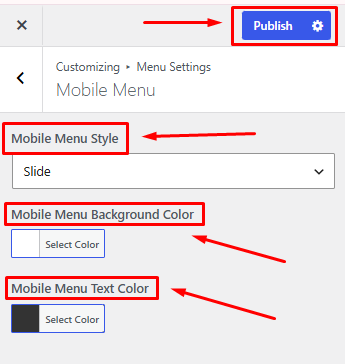
3. How to Manage Mobile Menu.
From your dashboard, go to the Appearance > Customize > Menu Settings > Mobile Menu
Mobile Menu Style: Choose the layout and appearance of the mobile navigation menu.
Mobile Menu Background Color: Select the background color for the mobile menu.
Mobile Menu Text Color: Choose the text color for mobile menu items.
Publish Settings: Click Publish to save and apply all changes.