How to Manage Call to Action Section in Storex Pro?
1. How to Add a Call to Action on the Homepage.
From your dashboard, go to the Appearance > Customize > Homepage Sections > Call to Action
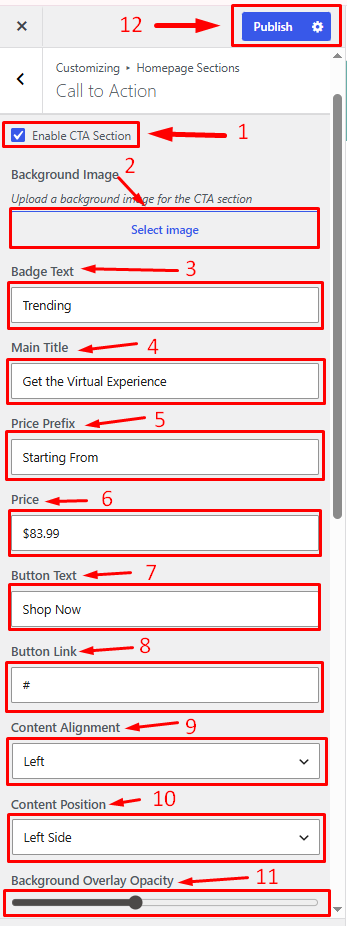
Enable CTA Section: Show or hide the Call to Action (CTA) section on the homepage.
Background Image: Upload or select a background image for the CTA section.
Badge Text: Enter the text displayed in the promotional badge.
Main Title: Enter the primary heading for the CTA section.
Price Prefix: Add text displayed before the price.
Price: Enter the price or promotional offer amount.
Button Text: Set the text displayed on the CTA button.
Button Link: Enter the destination URL for the CTA button.
Content Alignment: Choose the alignment of the CTA content.
Content Position: Select the position of the content within the CTA section.
Background Overlay Opacity: Adjust the overlay transparency applied to the background image.
Publish Changes: Save and apply your settings.
2. How to manage the color setting of the Call to Action on the Homepage.
From your dashboard, go to the Appearance > Customize > Homepage Sections > Call to Action
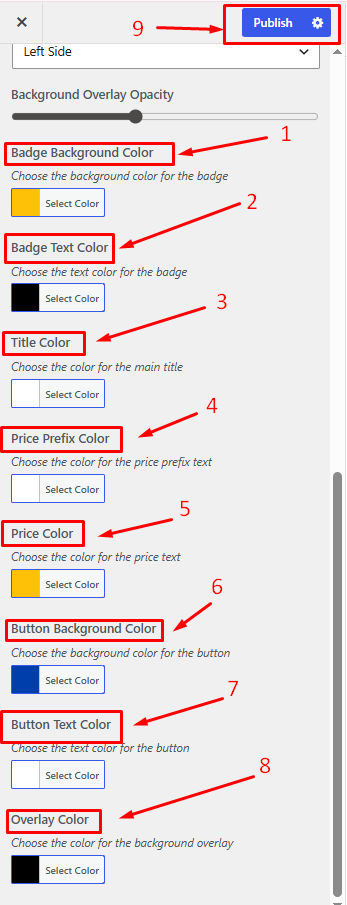
Badge Background Color: Select the badge's background color.
Badge Text Color: Choose the text color displayed inside the badge.
Title Color: Set the color of the CTA section title.
Price Prefix Color: Select the color for the price prefix text.
Price Color: Choose the color used for the price display.
Button Background Color: Set the background color of the CTA button.
Button Text Color: Choose the text color of the CTA button.
Overlay Color: Select the color of the background overlay.
Publish Changes: Save and apply your settings.