How to Manage Mixed Product Layout Section in Storex Pro?
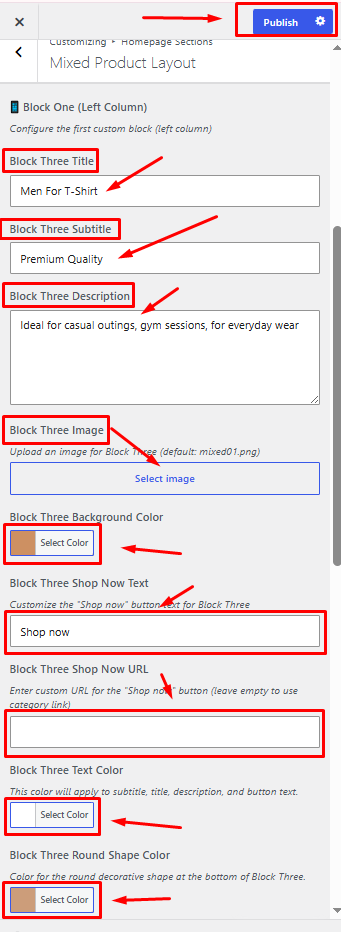
1. Mixed Product Layout – Block One Settings
From your dashboard, go to the Appearance > Customize > Homepage Sections > Mixed Product Layout
Block Title: Enter the main title for the product block.
Block Subtitle: Enter a short subtitle or promotional text.
Block Description: Add a brief description for the featured product or category.
Block Image: Click Select Image to upload or choose an image for the block.
Block Background Color: Select a background color for the block.
Block Shop Now Text: Enter the text to display on the call-to-action button.
Block Shop Now URL: Enter the URL where users will be redirected when clicking the button.
Block Text Color: Choose the text color for the title, subtitle, description, and button.
Block Round Shape Color: Select the color for the decorative round shape displayed in the block.
Publish Settings: Click Publish to save and apply all changes.
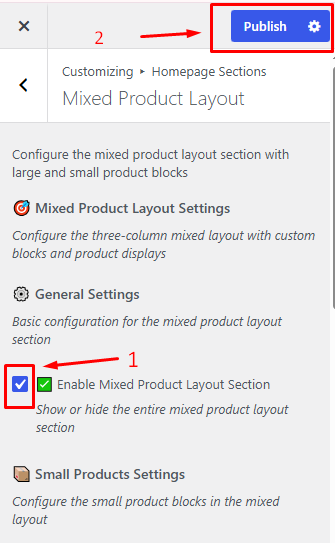
2. How to hide/show the Mixed Product Layout section.
From your dashboard, go to the Appearance > Customize > Homepage Sections > Mixed Product Layout
Here you can hide/show in this section
Publish Now