How to Manage Today's Popular Picks Section in Storex Pro?
1. How to add a product in this section.
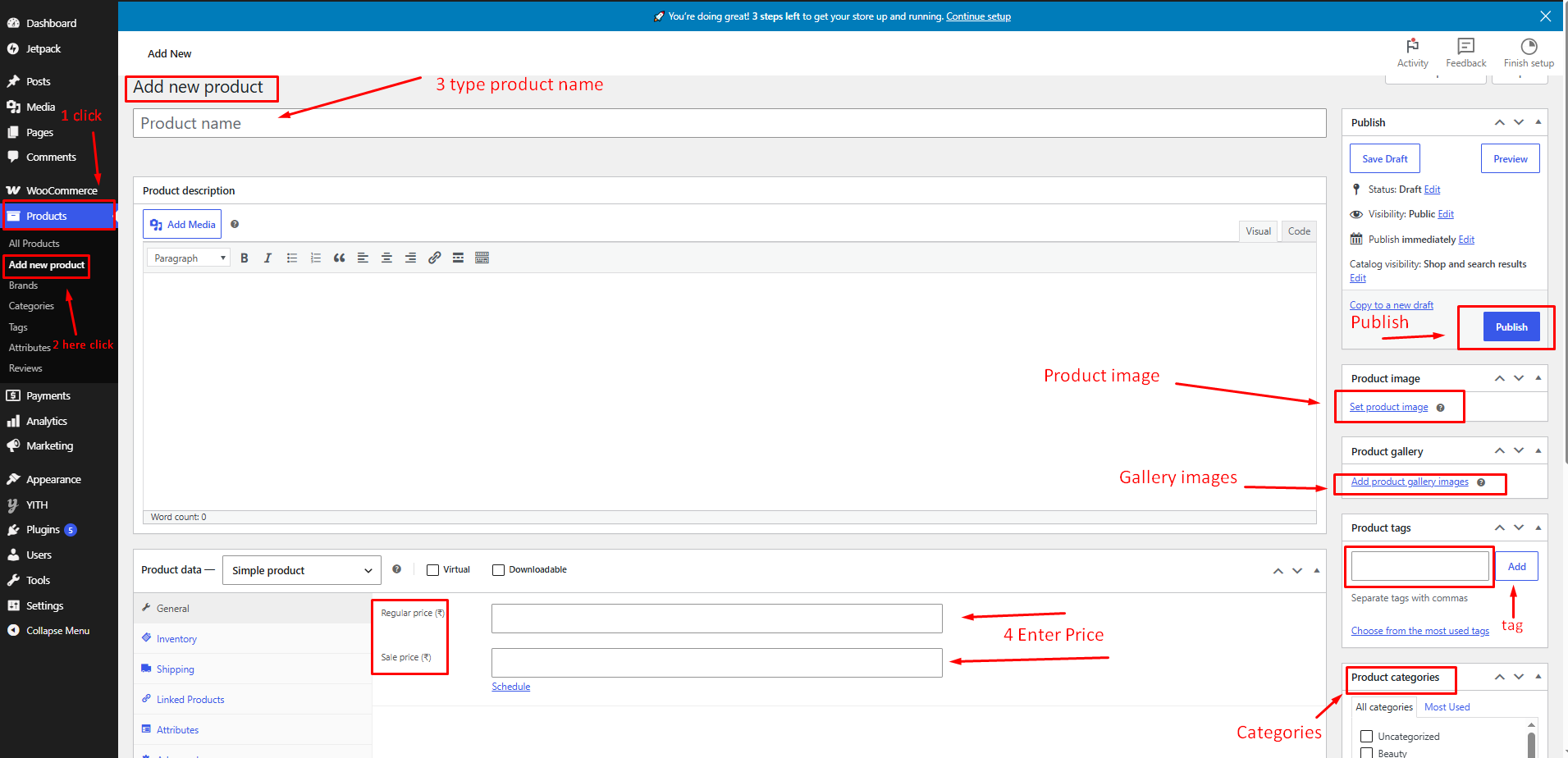
From your dashboard, go to the Products> Add New Product.
Go to Products: Navigate to Products → Add New Product from the WordPress Admin Dashboard.
Product Name: Enter the product title.
Product Description: Add the product description and details.
Product Price: Enter the Regular Price and Sale Price (optional) under the Product Data section.
Product Image: Click Set Product Image and upload the featured product image.
Product Gallery: Click Add Product Gallery Images to upload additional product images.
Product Tags: Add relevant product tags to improve product organization.
Product Categories: Select the appropriate category for the product.
Publish Product: Click Publish to save and make the product available on your website.
2. Add New Today's Popular Picks Settings.
From your dashboard, go to the Appearance > Customize > Homepage Sections >Today's Popular Picks
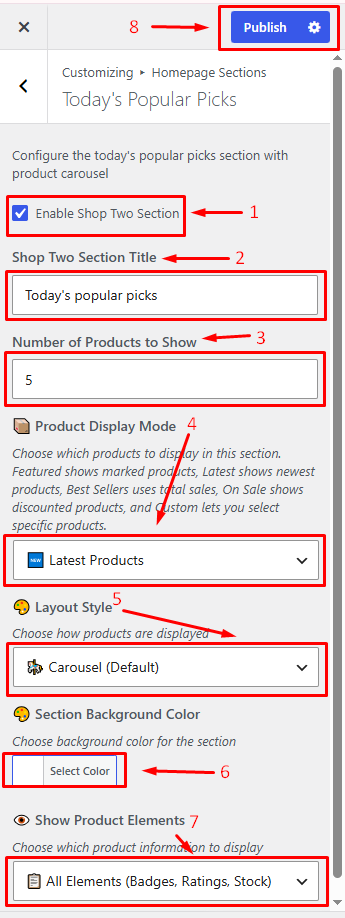
Enable Shop Two Section: Enable or disable the section display.
Shop Two Section Title: Enter the section heading.
Number of Products to Show: Set the number of products displayed.
Product Display Mode: Choose products to display (Latest Products, Featured Products, Best Sellers, On Sale, etc.).
Layout Style: Select the display layout (Carousel, Grid, etc.).
Section Background Color: Choose a background color for the section.
Show Product Elements: Select which product details to display (Badges, Ratings, Stock, etc.).
Publish Settings: Click Publish to save the changes.