How to Manage Popular Categories Section in Storex Pro?
1. How to add Categories in this section.
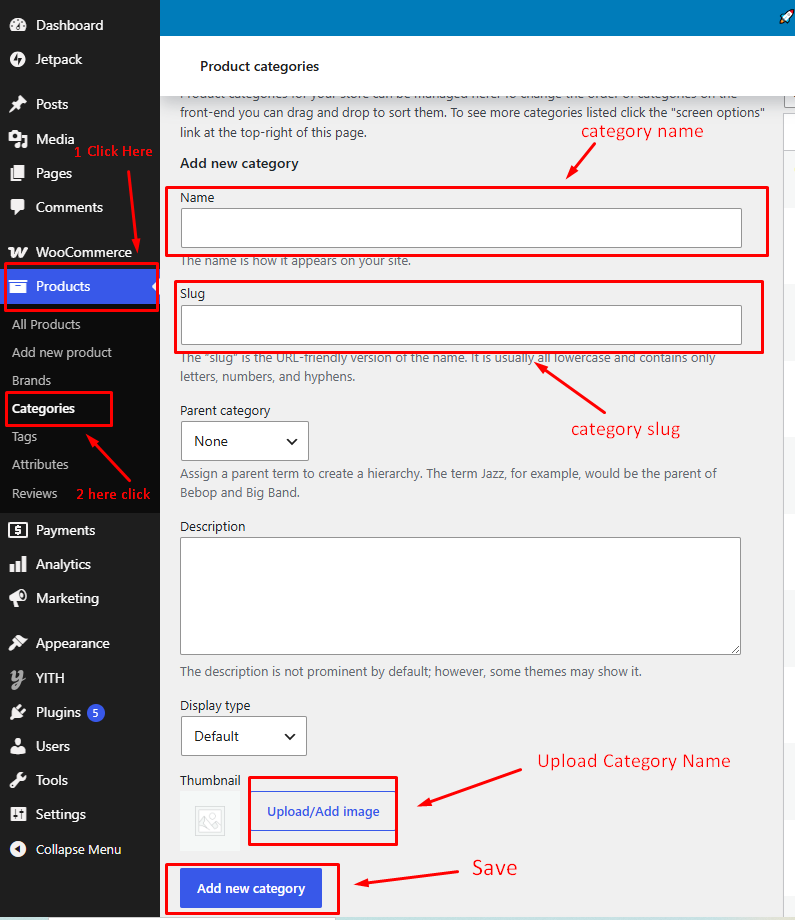
From your dashboard, go to the Products> categories.
Go to Product Categories: Navigate to Products → Categories from the WordPress Admin Dashboard.
Category Name: Enter the name of the category.
Category Slug: Enter a URL-friendly slug for the category.
Parent Category: Select a parent category if creating a subcategory (optional).
Description: Add a brief category description (optional).
Category Image: Upload or select an image for the category.
Publish Changes, Save, and apply your settings.
2. How to manage category content.
From your dashboard, go to the Appearance > Customize > Homepage Sections > Popular Categories
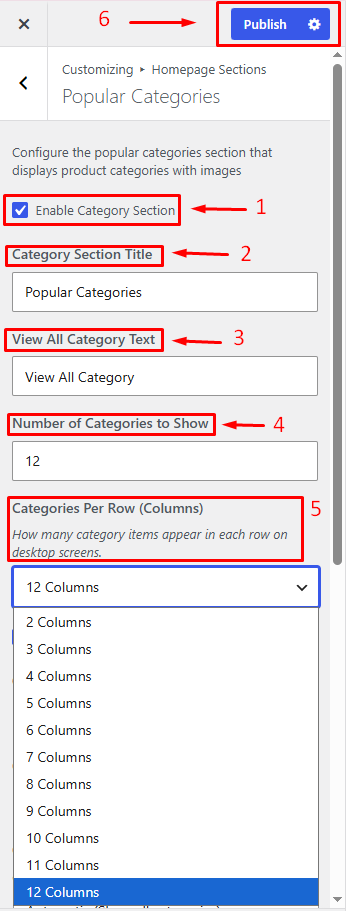
1. Enable Category Section: Show or hide the Popular Categories section on the homepage.
2. Category Section Title: Enter the heading displayed for the category section.
3. View All Category Text Set the text for the "View All Categories" link or button.
4. Number of Categories to Show: Specify how many categories to display in the section.
5. Categories Per Row (Columns) Choose the number of category columns displayed in each row.
6. Publish Changes, Save, and apply your settings.
3. Product Categories Widget Settings
From your dashboard, go to the Appearance > Customize > Homepage Sections > Popular Categories
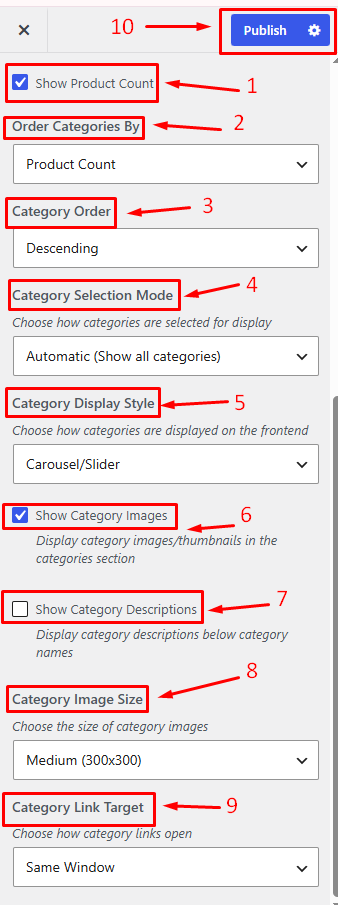
Show Product Count: Enable this option to display the number of products available in each category.
Order Categories By: Select the criteria used to sort categories (e.g., Product Count, Name, ID, etc.).
Category Order: Choose the display order for categories (Ascending or Descending).
Category Selection Mode: Select how categories will be displayed:
Automatic (Show all categories)
Manual selection of specific categories
Category Display Style: Choose the frontend display style for categories (e.g., Carousel/Slider, Grid, List).
Show Category Images: Enable this option to display category images/thumbnails.
Show Category Descriptions: Enable this option to display category descriptions below category names.
Category Image Size: Select the size of category images (e.g., Thumbnail, Medium, Large).
Category Link Target: Choose how category links will open:
Publish Settings: Click the Publish button