How to Manage Slider Settings Section in Storex Pro?
1. How to manage Upper Text, Title, Subtitle, Price, Button Text, Button URL, Background Image & Pattern Image.
From your dashboard, go to the Appearance > Customize > Homepage Sections > Slider Settings
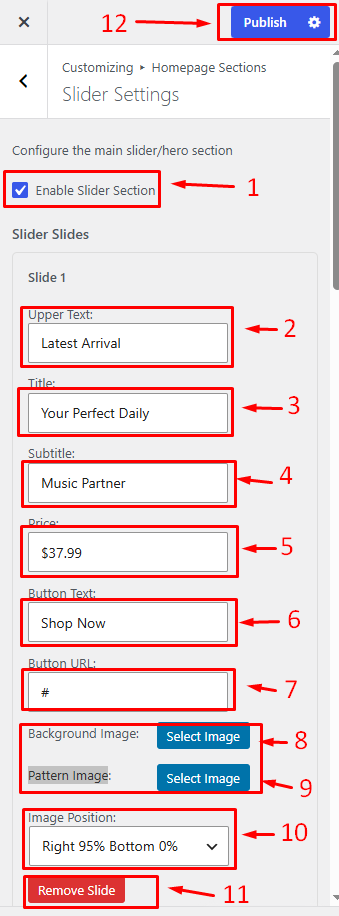
1. Enable Slider Section: Show or hide the homepage slider section.
2. Upper Text Enter the text displayed above the slider title.
3. Title: Enter the main slider heading.
4. Subtitle: Add a secondary heading or description.
5. Price: Display a product price or promotional price.
6. Button Text Set the button label.
7. Button URL: Enter the destination link for the button.
8. Background Image Upload or select the slider background image.
9. Pattern Image Upload or select a decorative pattern image.
10. Image Position: Choose the position of the slider image.
11. Remove Slide: Delete the current slide from the slider.
Click on Publish.
2. Add New Slider & Slider Style Settings
From your dashboard, go to the Appearance > Customize > Homepage Sections > Slider Settings
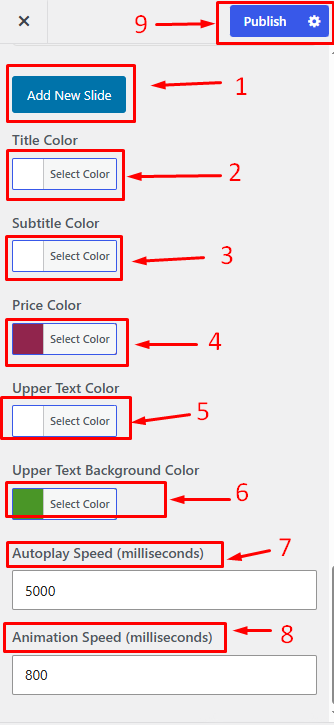
1. Add New Slide: Create a new slide for the homepage slider.
2. Title Color Select the color for the slide title.
3. Subtitle Color Select the color for the slide subtitle.
4. Price Color Select the color for the price text.
5. Upper Text Color Select the color for the upper text.
6. Upper Text Background Color Select the background color for the upper text.
7. Autoplay Speed (Milliseconds) Set the delay between slide transitions.
8. Animation Speed (Milliseconds) Set the transition animation speed.
9. Publish Changes, Save, and apply your settings.